Adding and arranging questions
Choose field types, set required answers, and keep question names stable.
- Open the form's Questions tab and click Add question. If there is no question page yet, click Add page first.
- Choose the question type in Add a question or block.
- Give the question a short, unique name, such as
visitor_nameoremail. This identifies the answer; it is not the wording shown to visitors. - Write the question in the prompt field. Add an explanation when people need help answering.
- Select Required, this question must be answered only when the form cannot work without that answer.
- For a short-answer field, choose Validation when it must contain an email address, number, phone number, or date.
- Use the up/down controls or drag handle to arrange questions. Save and check their order with View.
| Choose | For |
|---|---|
| Short answer | A name or a single value; validation checks its format |
| Long answer | A comment or explanation |
| Yes or no | A clear choice between two answers |
| Multiple choice or quiz question | One or several choices, with translatable labels |
| 5-point scale | Agreement with a statement |
| Header or Text, image, video | Instructions between questions |
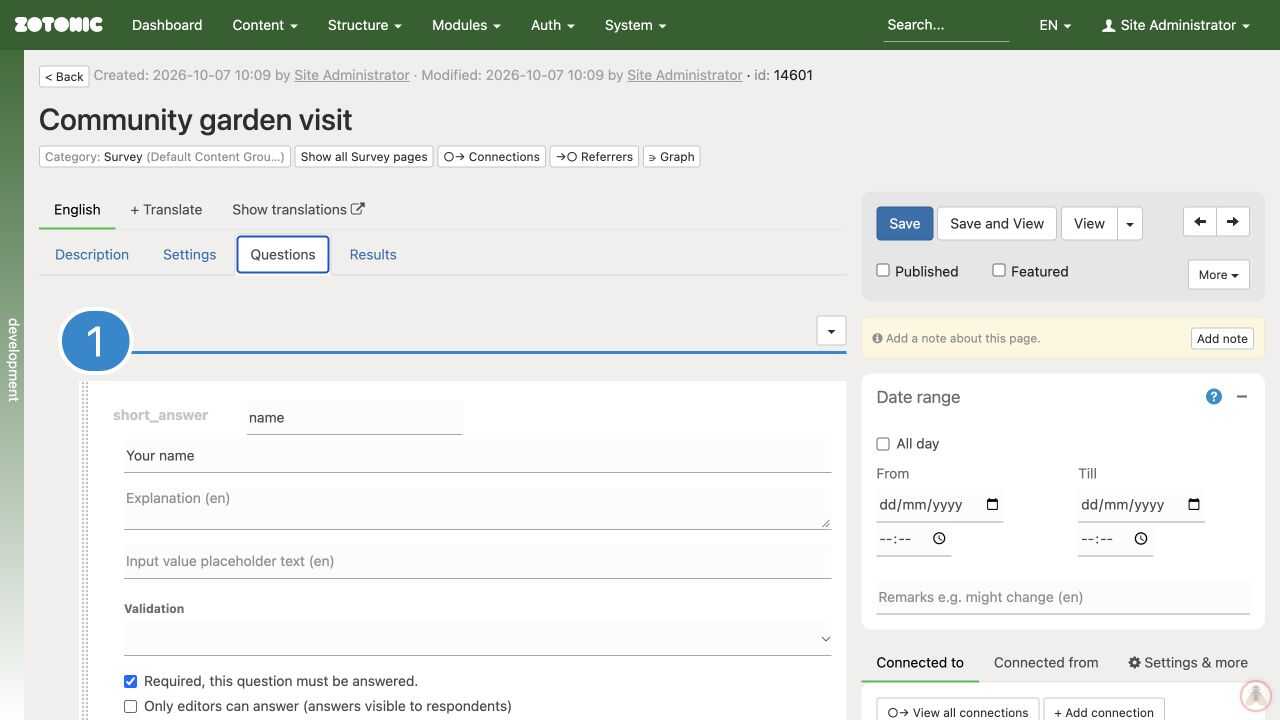
Keep names unique and unchanged once responses exist. Translate prompts and answer labels, not the names used to identify them.
Only editors can answer makes the field read-only for respondents, but they may still see its prompt and saved answer. It is not a private internal note. Hide from results is a display option, not a guarantee that the answer is never stored or accessible.
A file-upload question belongs on the final question page. The standard result email can carry uploads as attachments, but the file is not a normal stored survey answer. Ask your website manager how files will be delivered and retained before using it.