Downloading survey results
Export answers and check what information the file contains.
You need permission to download results, and the site's export feature must be enabled.
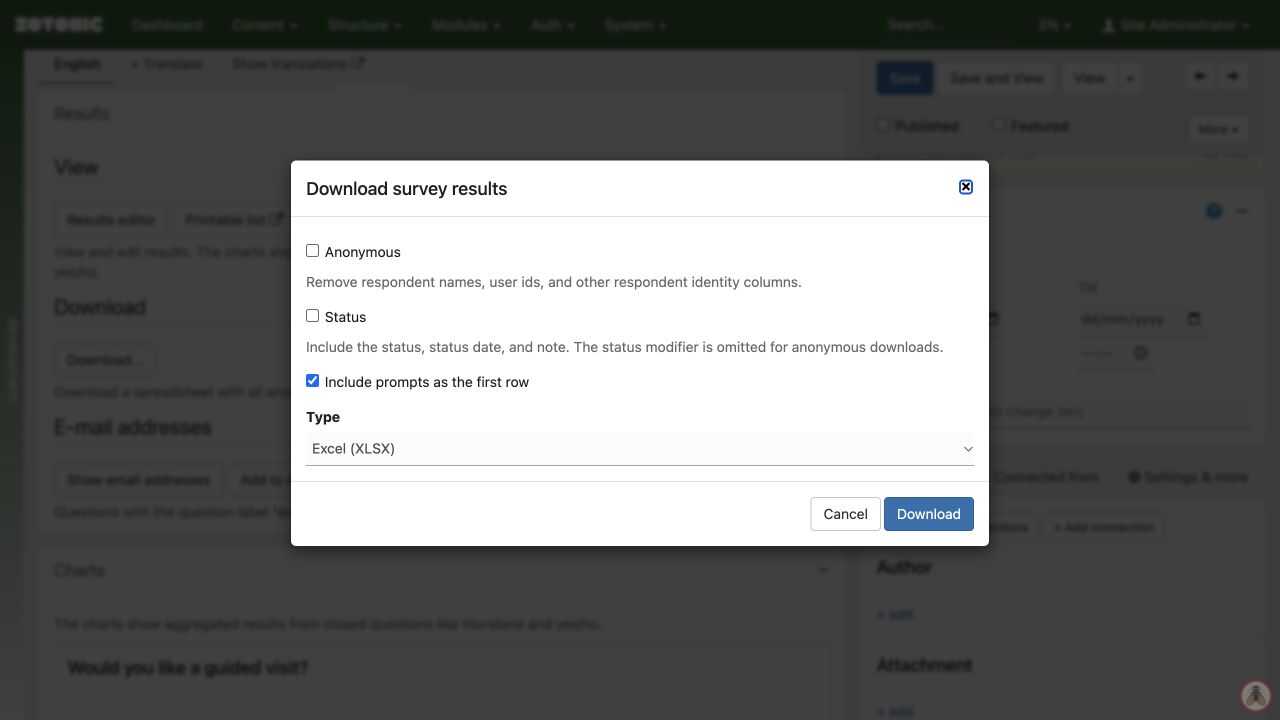
- Open the survey's Results tab and click Download….
- Choose Anonymous to remove respondent identity columns from the export, if appropriate.
- Select Status only if the recipients need internal status information and notes. This choice is available to survey editors.
- Decide whether to include question prompts as the first row.
- Choose Excel (XLSX), CSV, or JSON, then Download.
- Open the file and check its question columns, response count, and a known test response before sharing it.
An anonymous export is not necessarily anonymous content. A name or email entered as an answer, or identifying details in free text, can still identify someone. Inspect the actual file before sharing it. The form setting that hides user/browser identifiers does not remove information people type into questions.
Keep exported files where only the intended people can access them. They are independent copies: deleting or correcting a response in Zotonic does not update an earlier download.
Show email addresses and Add to mailinglist are separate tools. Do not add respondents to a newsletter simply because they supplied an address for a registration or request.